How to Add a Poll to a WordPress Site, 3 Easy Ways
WordPress gives you three real ways to get a poll onto a page, and most people reach straight for the one they need least: a plugin. Before you install anything, it helps to know that a poll is usually just a small block of code that can sit inside a post the same way an embedded video or tweet does. Which route you pick depends less on WordPress and more on what your poll tool hands you the moment you finish building the poll.
Paste the embed into a Custom HTML block
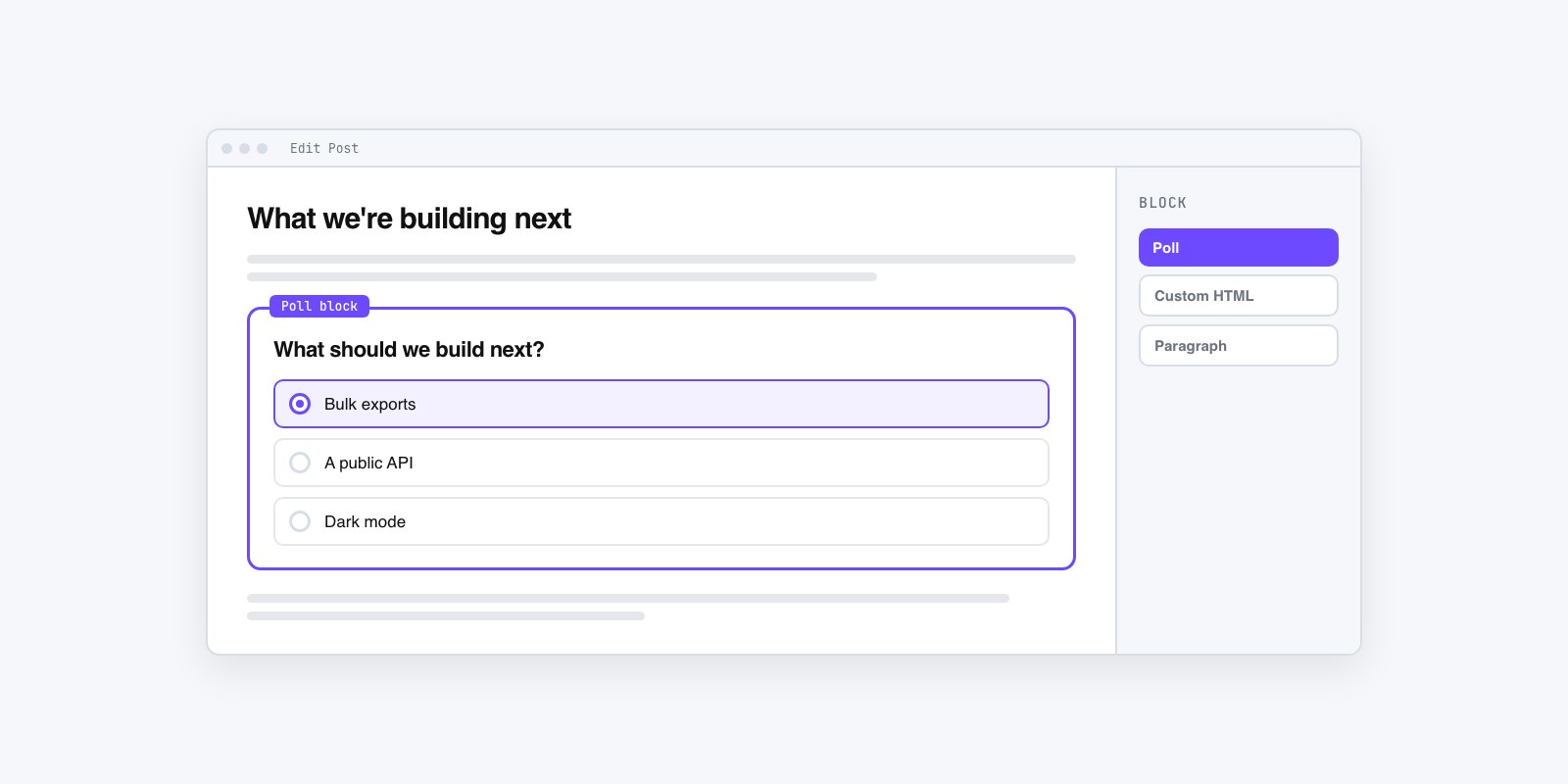
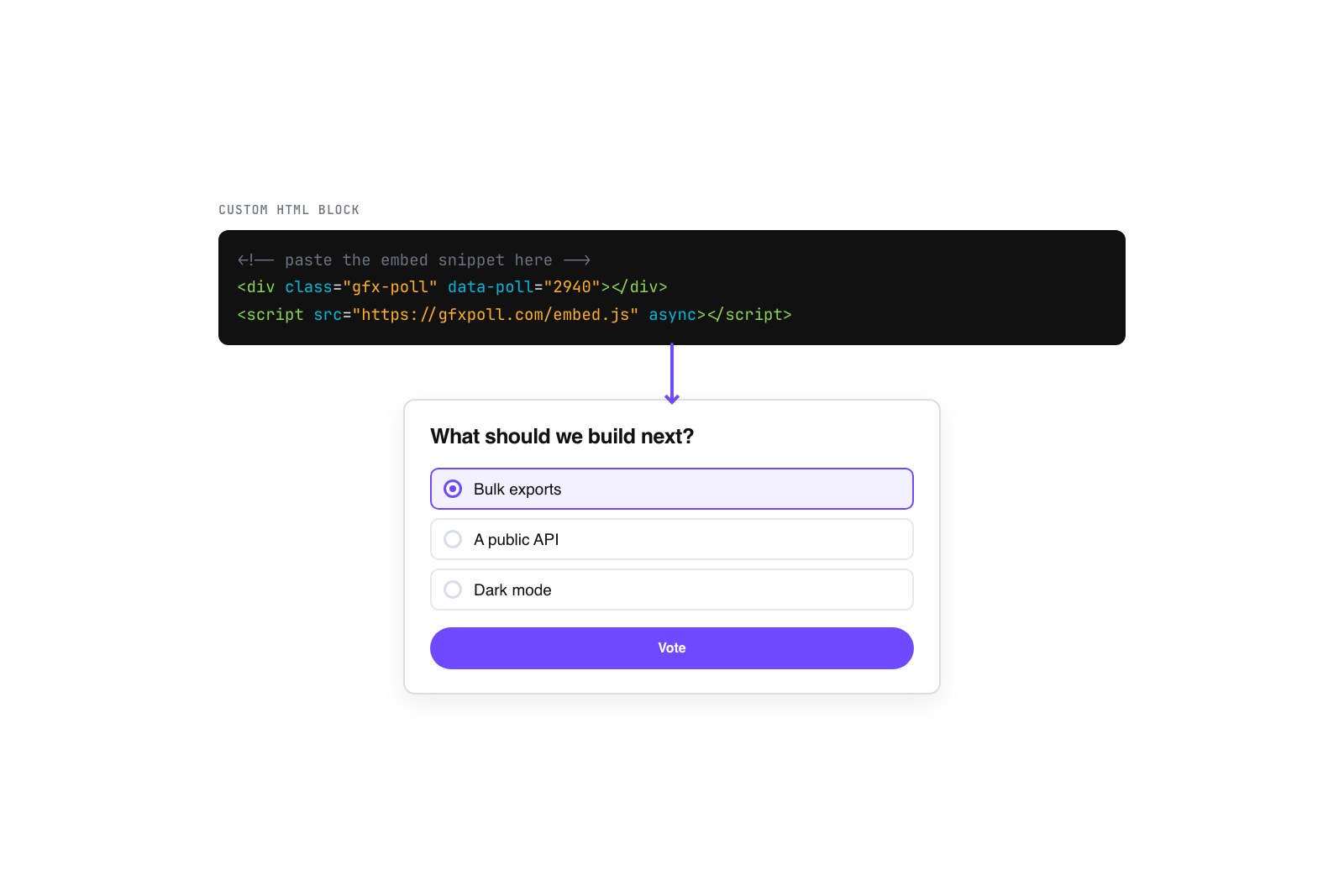
The fastest route uses a WordPress poll block the editor already ships with. When you finish a poll in most tools, you get back an embed snippet, a short piece of code. In the block editor, click the plus icon, search for “Custom HTML”, and paste the snippet into that block. That’s the whole job. Toggle the block’s preview and the live poll should render right there in the editor. If you build one in the GFX Poll Studio creator, you copy the embed code from the finished poll and drop it into that Custom HTML block the same way.
The nice thing about this path is that the poll loads from the tool, so WordPress is only holding a small window to it. Nothing gets installed, nothing extra runs on your server, and there’s no new plugin to update. For a single poll at the end of an article, this is where I’d start every time.
Use a shortcode if your tool hands you one
Some poll services give you a shortcode instead of, or alongside, an embed snippet, something that looks like [poll id="1234"]. If yours does, you don’t even need the Custom HTML block. Drop a plain Shortcode block into the post, paste the shortcode, and WordPress swaps it for the live poll when the page loads. Shortcodes also work in a few spots a block sometimes won’t, like an old text widget or a theme area that predates the block editor.
The catch is that a shortcode only does something if a plugin or your theme already knows how to read it, which usually means the tool has installed its own small helper. So a shortcode is rarely as lightweight as it looks. If you’re still on the classic editor, though, it’s often the cleanest option you’ve got.
When a plugin earns its place, and when it doesn’t
A dedicated poll plugin is the heaviest option, and for one poll under one article it’s usually overkill. Every plugin you add is more code loading on the page, another thing that can conflict with your theme or your caching setup, and one more login to keep patched. A lightweight embedded poll sidesteps all of that. It loads its own small script only where you place it, and it can’t take down the rest of your site because it isn’t wired into WordPress internals.
Where a poll plugin for WordPress does earn its keep is when polls are a recurring, core feature. If you’re running many of them, want every result stored in your own database, or need votes tied to logged-in member accounts, a plugin gives you that. A recipe blogger dropping a “which version should I test next” poll once a month does not need it. A membership community running weekly member votes probably does. Match the weight of the tool to how often you’ll actually use it, not to how it feels to have the “real” solution installed.
Where to drop it in the editor
Getting the code in is easy. Putting it in the right spot is the part that decides whether anyone votes. In the block editor, the poll should sit inside the content column at full width, right after the section it relates to, not shoved into a sidebar widget where readers have trained themselves to ignore everything. If your article just listed three recipes and asks “which of these should I post next,” put the poll in the paragraph directly under that list, while the reader still has the three in their head.
The bigger question of where polls belong across your whole site, homepage versus posts versus footer, is worth its own read. And if you run more than one site, the same embed mechanics carry over to platforms beyond WordPress, so the habit you build here transfers.
Check it on mobile before you walk away
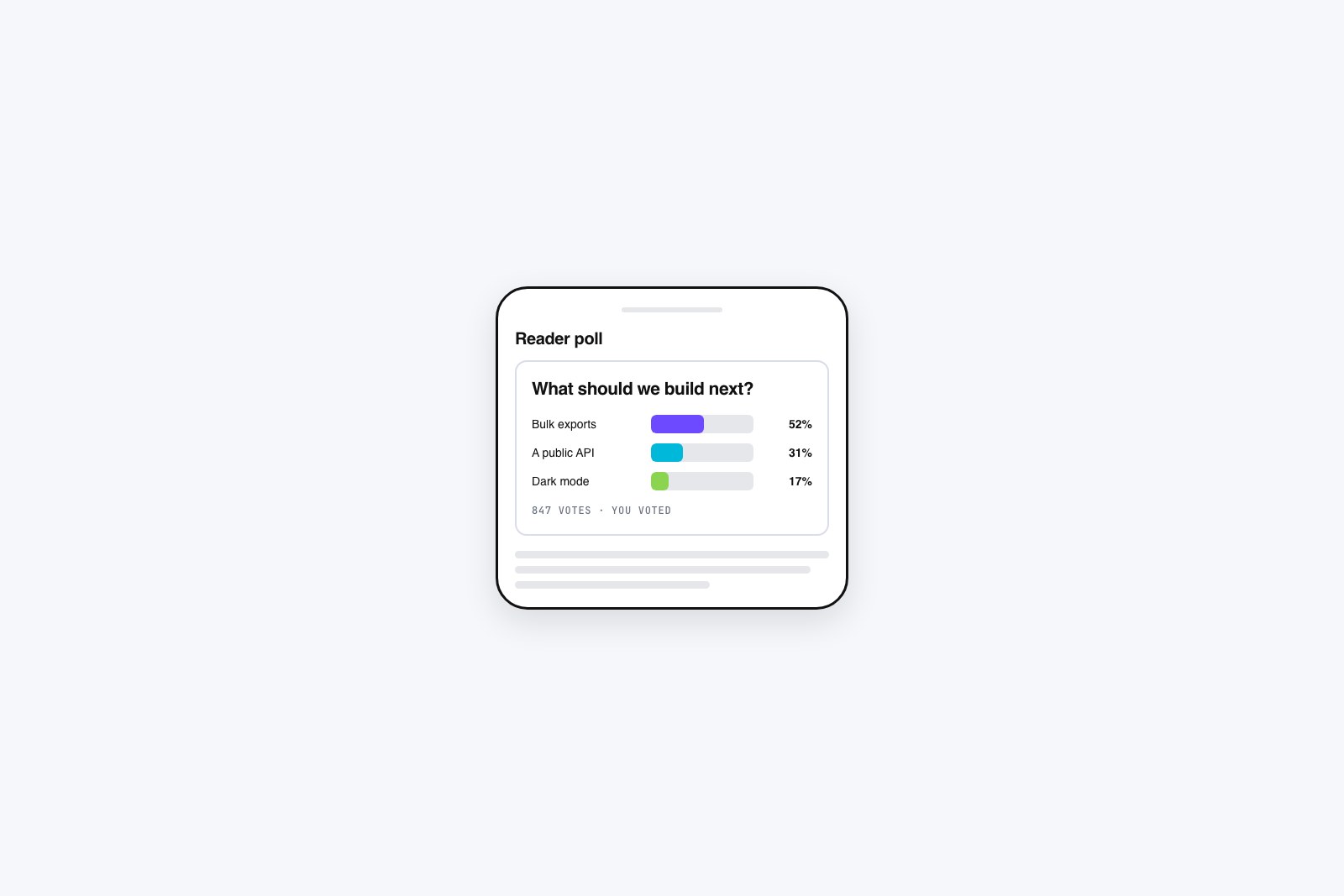
Before you call it done, open the published page on a phone, not just the desktop preview. Most WordPress traffic is mobile, and an embedded poll is exactly where a layout quietly breaks: answer options that wrap onto two cramped lines, a poll card wider than the screen with a sideways scroll, tap targets so small people miss the option they meant to pick. Vote in it yourself from your phone.
Make sure the result view actually shows after you tap, and that the whole card fits between the margins. A poll that looks clean on your laptop and clips off the edge of a phone is a poll most of your readers can’t use, and you won’t find out until you check. Two minutes voting on your own poll on a real phone catches the one problem the desktop editor is happy to hide from you.